Compress Image to 100 KB Online
Upload your photo or scan, compress toward 100 KB, and download — built for Indian portals that reject oversized JPGs.
Job portal profile photos
Bank KYC and ID uploads
University admission photos
Exam registration when 100 KB is listed
Quick note
Use when the form says max 100 KB. For 50 KB or 20 KB fields, switch to the matching preset page.
JPG for faces and scans. Convert PNG photos first if the file stays heavy.
Compression studio
Use when the form says max 100 KB. For 50 KB or 20 KB fields, switch to the matching preset page.
Original
No file selected
Result
No compressed file yet
Why this page exists
Why I built a 100 KB compressor
If you have uploaded a photo for a government form, job application, passport update, or college admission, you have probably seen something like "Image size must be less than 100 KB." I hit that wall repeatedly while helping friends finish KYC and exam registrations on their phones.
Most compressors I tried either crushed faces until they looked plastic, or asked for desktop software at the last minute. I built this page on ImageFormatConverter.in so you can upload once, let the tool work toward 100 KB, download, and check the result before the portal timer runs out — on Android, iPhone, or laptop.
I am Rajat Gupta. I run this site and have worked with image compression for form uploads in India for several years. This write-up is based on real files people send me, not a generic spec sheet.
Who this is for
Who actually needs a 100 KB image
Not every upload field asks for 100 KB. When the form prints that number — or "max 100 KB" — this preset matches it. If the cap is 50 KB or 20 KB, use a tighter page instead of forcing a larger file through the wrong target.
- Government job application forms
- Passport-style photo uploads
- University admission portals
- Online examination registration
- Banking KYC verification
- Employee onboarding portals
- Scholarship applications
- Visa document submission (when JPG is accepted)
Wrong cap? 50 KB, 20 KB, or 200 KB when the form allows more detail.
Testing notes
How I tested the tool
Before publishing updates to this page, I ran batches of files through the same compressor you see above:
- Android and iPhone camera portraits (plain wall background)
- Passport-style crops for exam forms
- Phone photos of signed certificates and ID cards
- PNG screenshots with small text
- JPEG scans forwarded over WhatsApp (to show why that is a bad source)
Most JPG portraits reached about 95–100 KB with faces still acceptable for portal previews. PNG photos often needed a PNG to JPG step first. Text-heavy screenshots needed a lighter touch — or a higher cap if the form allowed it.
How to use it
Compress image to 100 KB — step by step
- Read the form. Note max KB, required format (usually JPG), and pixel size if listed.
- Pick the original from Gallery or Files — not a chat forward.
- Crop empty background, table edges, or extra shoulders in your phone editor first.
- Upload to the tool at the top of this page. The target is already set to 100 KB.
- Download and open the file once at full zoom — eyes, stamp, or ID numbers.
- Submit to the portal. Keep the original until you get confirmation.
Before & after
Real test results
These are actual files I compressed while testing this page — same workflow as above, JPG output unless the source required conversion first.
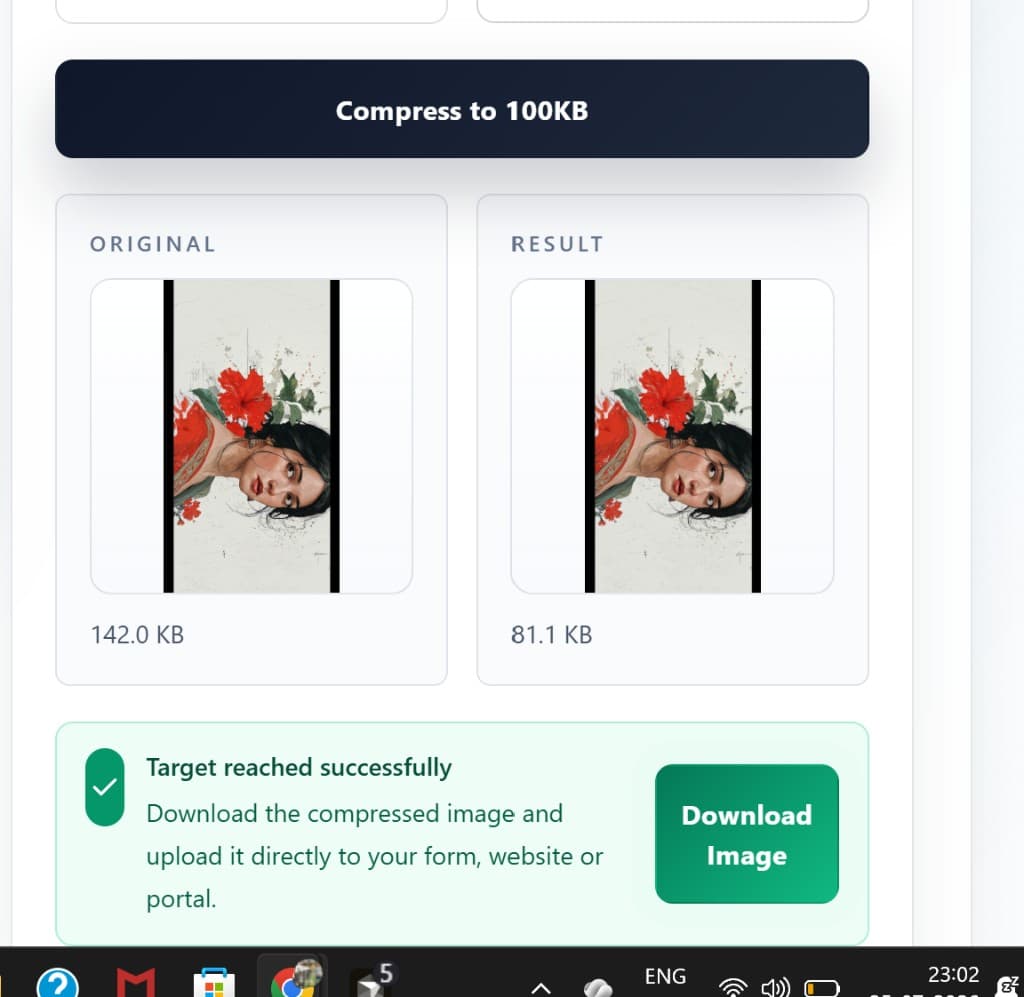
Portrait photo (JPG output, 100 KB target)
Original and compressed file from the same upload. Face detail and red tones stayed intact at 81 KB — well under a 100 KB form cap.


When something fails
Common problems and fixes
Why isn't my image exactly 100 KB?
Final size depends on resolution, colours, and format. Slightly above 100 KB is common. Crop tighter once from the original — do not chain five compressions on the same download.
Upload rejected despite correct KB
Check JPG vs PNG, pixel dimensions, and filename. A 98 KB WEBP still fails when the portal lists JPG only.
Face looks soft
Start from the camera original, crop closer, use JPG. If the form allows 200 KB, use that cap instead of over-crushing at 100 KB.
Scan text looks fuzzy
Rescan in daylight or allow a larger limit. Compression cannot restore missing detail from a blurry photo of paper.
Quality
Tips to keep image quality high
- Prefer JPG for photos — it usually reaches 100 KB with less visible loss than PNG.
- Crop background before compressing; do not rely on the slider alone.
- One pass from the original beats three passes on a download.
- Preview at full size before official submit — thumbnails lie.
- For text-heavy screenshots, zoom the smallest line after download.
Privacy
Your images stay private
Compression runs in your browser for a normal pass. Your file is processed on your device and downloaded from there — I do not ask for an account to compress a single KYC photo. Close the tab after download on shared computers. For sensitive IDs, use your own phone on a connection you trust. See privacy policy for site-wide details.
About the author
Who maintains this tool
I am Rajat Gupta, founder of ImageFormatConverter.in. I built the site after watching friends lose hours to upload errors that had nothing to do with how their photo looked — wrong kilobytes, wrong format, wrong dimensions.
The 100 KB preset is one of the most-used pages on the site because that number appears constantly on Indian job portals and KYC screens. I update copy and compression behaviour when real users report a new rejection pattern — not when a keyword list changes.
More context: About ImageFormatConverter. Deeper walkthrough: 100 KB quality guide.
Questions
Frequently asked questions
Will compressing to 100 KB make my photo blurry?
On a normal phone portrait, usually not — JPG can land near 100 KB with little change at normal viewing size. Blur more often comes from a WhatsApp-forwarded source or compressing the same file three times in a row.
Why is my file 103 KB instead of exactly 100 KB?
Exact bytes depend on resolution, colours, and format. Many portals accept slightly over the line; if yours is strict, crop empty background once and run a single fresh pass from the original.
PNG or JPG for a 100 KB upload?
JPG for photos and most scans. PNG is fine for sharp screenshots but photo-like PNGs often stall above 100 KB until you convert with PNG to JPG first.
Can I use this on mobile without installing an app?
Yes. Open the page in Chrome or Safari, pick from gallery, download, then attach in the form app. Rename the file if your gallery shows two similar thumbnails.
Is 100 KB right for a signature field?
Often no — many forms cap signatures at 20 KB. Read each field; use the 20 KB tool when that is what the form prints.
Final thoughts
Before you leave this page
A 100 KB upload is a paperwork rule, not a beauty contest. Match the form's number and format, crop once, compress once, verify at full zoom, then submit. If the portal allows more than 100 KB, use it — you do not need the smallest file on the label.